> For the complete documentation index, see [llms.txt](https://docs.polkagate.xyz/polkagate/llms.txt). Markdown versions of documentation pages are available by appending `.md` to page URLs; this page is available as [Markdown](https://docs.polkagate.xyz/polkagate/polkagate-extension-user-guide/settings/extension-settings/allow-camera-access.md).
# Allow Camera Access
If you need to **import a QR signer**, the extension requires access to your **system camera** to scan the QR code and import the account. By default, camera access is **disabled**.
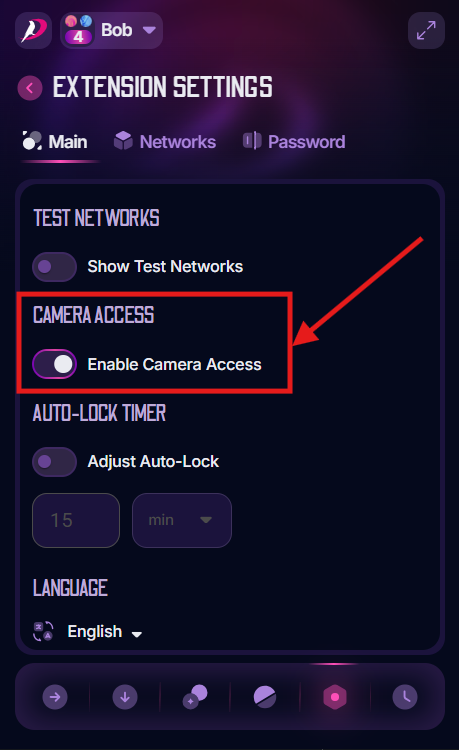
To enable it in **extension mode**, open **Settings → Extension Settings → Main tab**, and toggle **Enable Camera Access**, as shown below.
Extension Settings (extension)
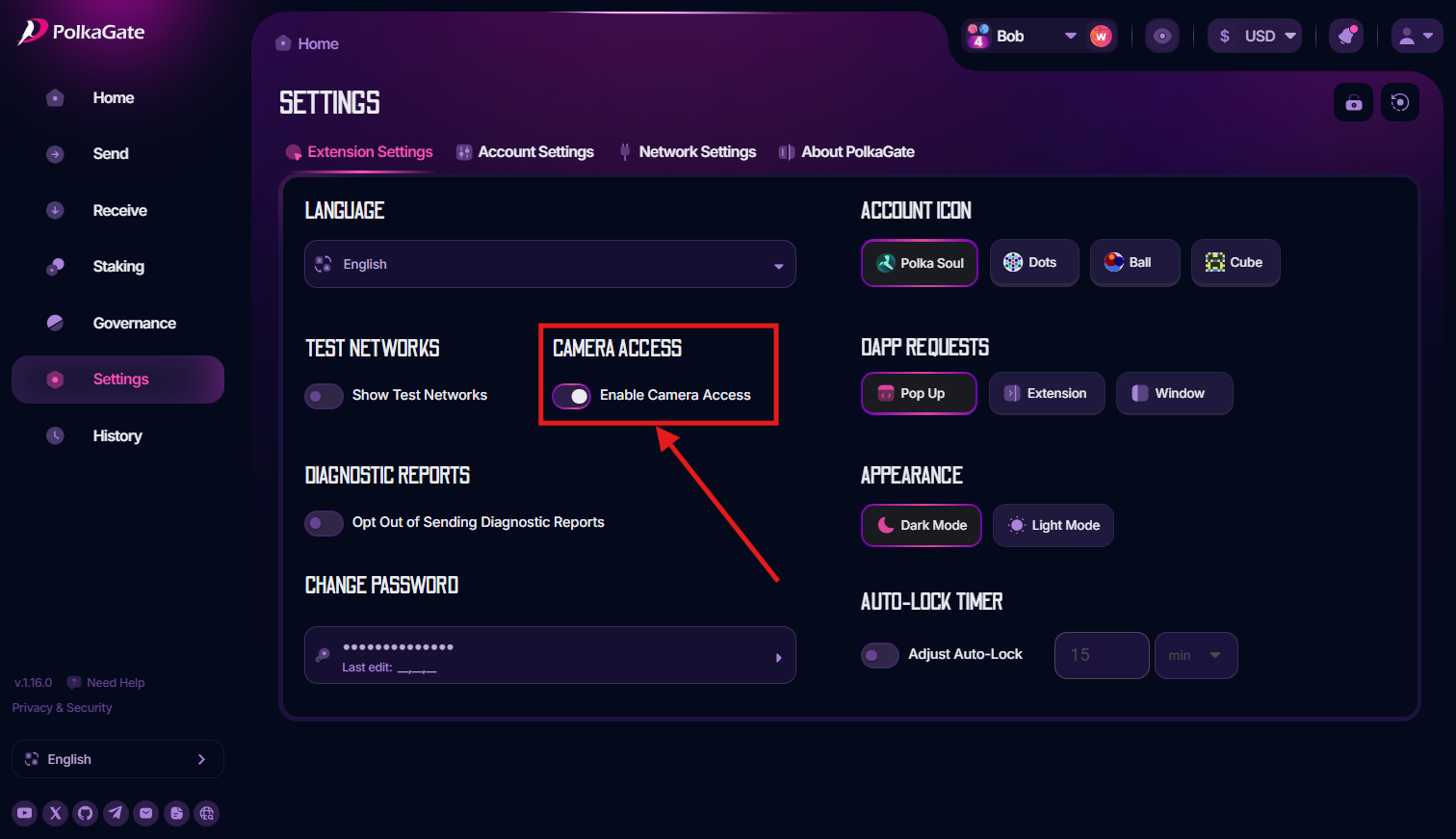
In full-screen mode, open **Settings → Extension Settings →** toggle **Enable Camera Access**, as shown below.
Extension Settings (full-screen)
***
🟢 After enabling the feature, you may notice a green LED light next to your webcam on your PC or laptop. This indicates that the camera is active and the feature is functioning as expected. There’s no need to worry; it’s simply a sign that the system is checking the enabled feature.
If you no longer need to use the **QR signer**, you can **disable** the option at any time.