> For the complete documentation index, see [llms.txt](https://docs.polkagate.xyz/polkagate/llms.txt). Markdown versions of documentation pages are available by appending `.md` to page URLs; this page is available as [Markdown](https://docs.polkagate.xyz/polkagate/polkagate-extension-user-guide/settings/extension-settings/ai-transaction-insights.md).
# AI Transaction Insights
AI Transaction Insights explains complex blockchain transactions in plain language, so you can sign with confidence—no deep technical knowledge required.
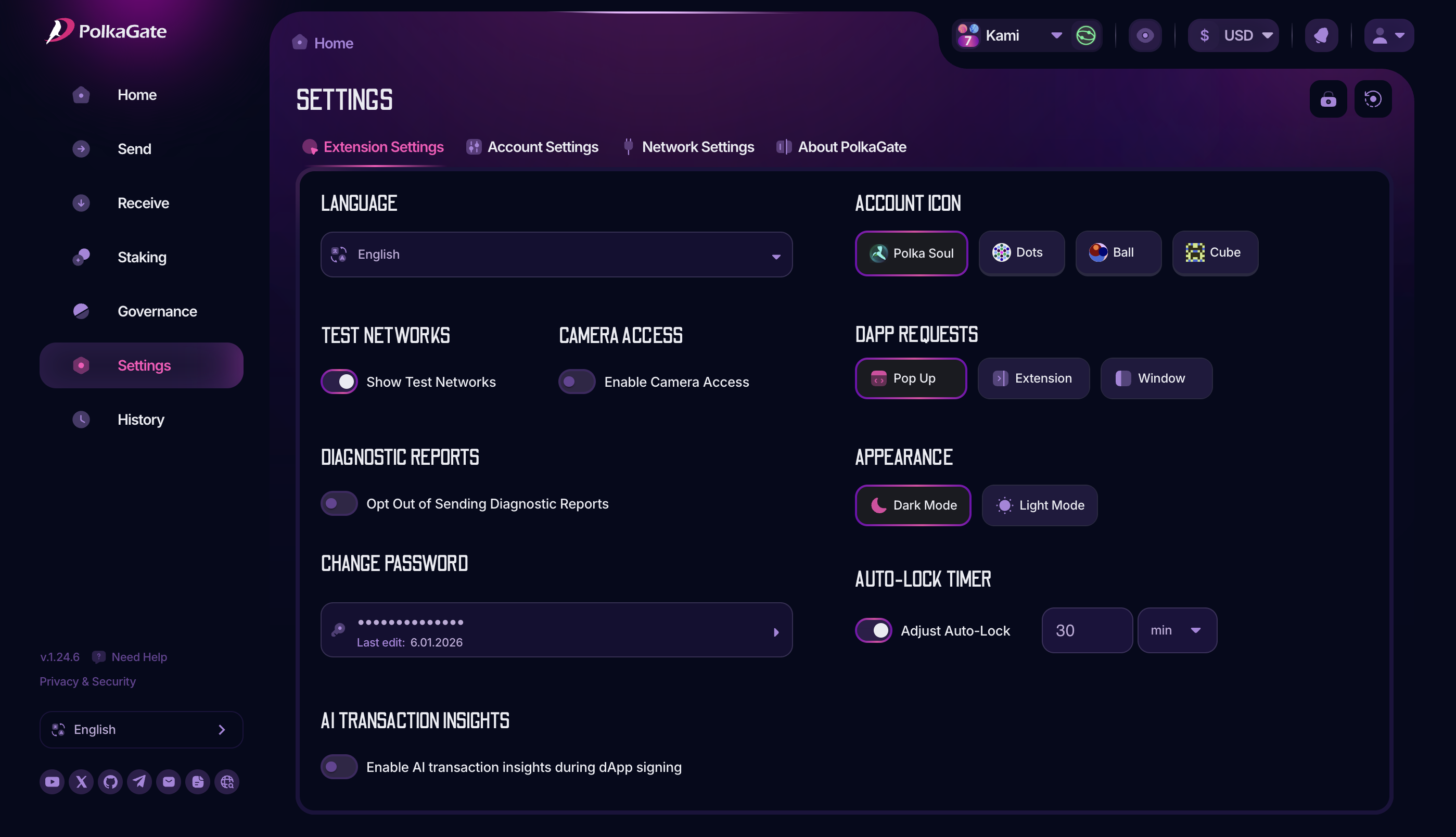
To enable **AI Transaction Insights**, open the PolkaGate extension in full-screen view, then go to Settings. In the Extension Settings tab, look at the bottom-left section (as shown below), where you’ll find the option “AI Transaction Insights.” Toggle it on to enable the feature.
Enable AI insights
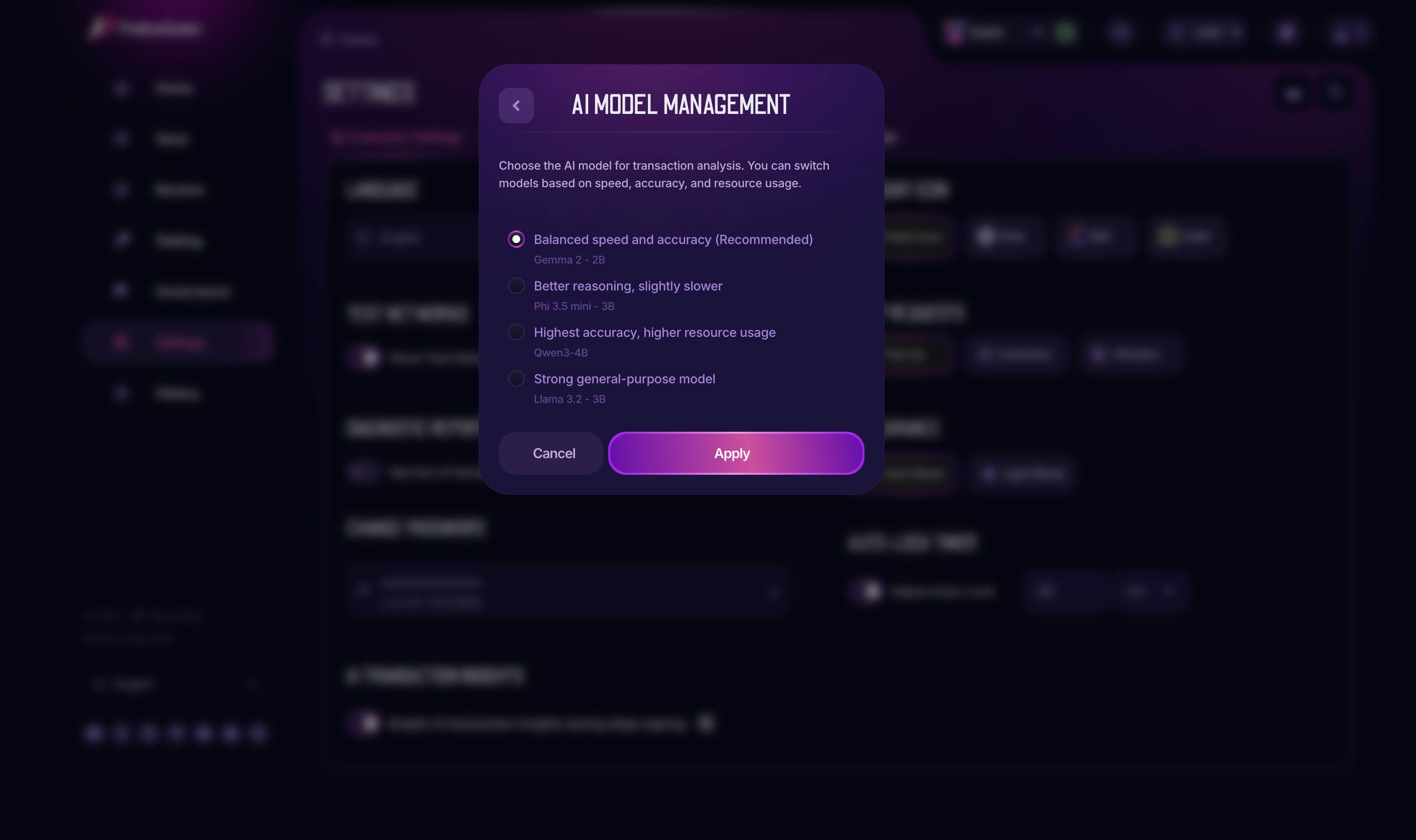
When you click it, a popup will appear showing the available **AI models**. Choose the model that best fits your preference. After selection, the model will begin downloading (the time depends on your internet connection). This is a one-time download.
Available AI models
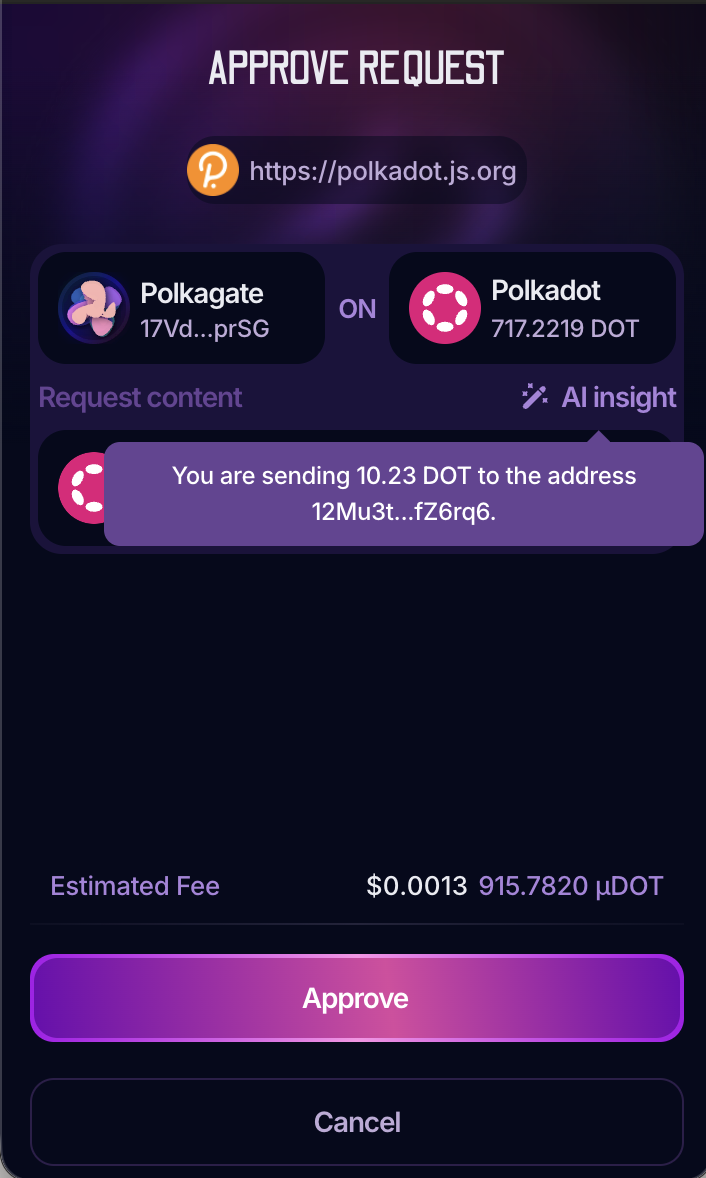
Once the download is complete, the selected AI model will be used on **signing pages** that open from websites and dApps, providing transaction insights during the signing process (see the example below).